Before you add to the payroll, look at how the work moves
A department that is not performing is not always short of staff or short of a system. More often the problem sits in the procedures themselves — the way work travels from one point to the next, who touches it, and how many times the same decision gets made.
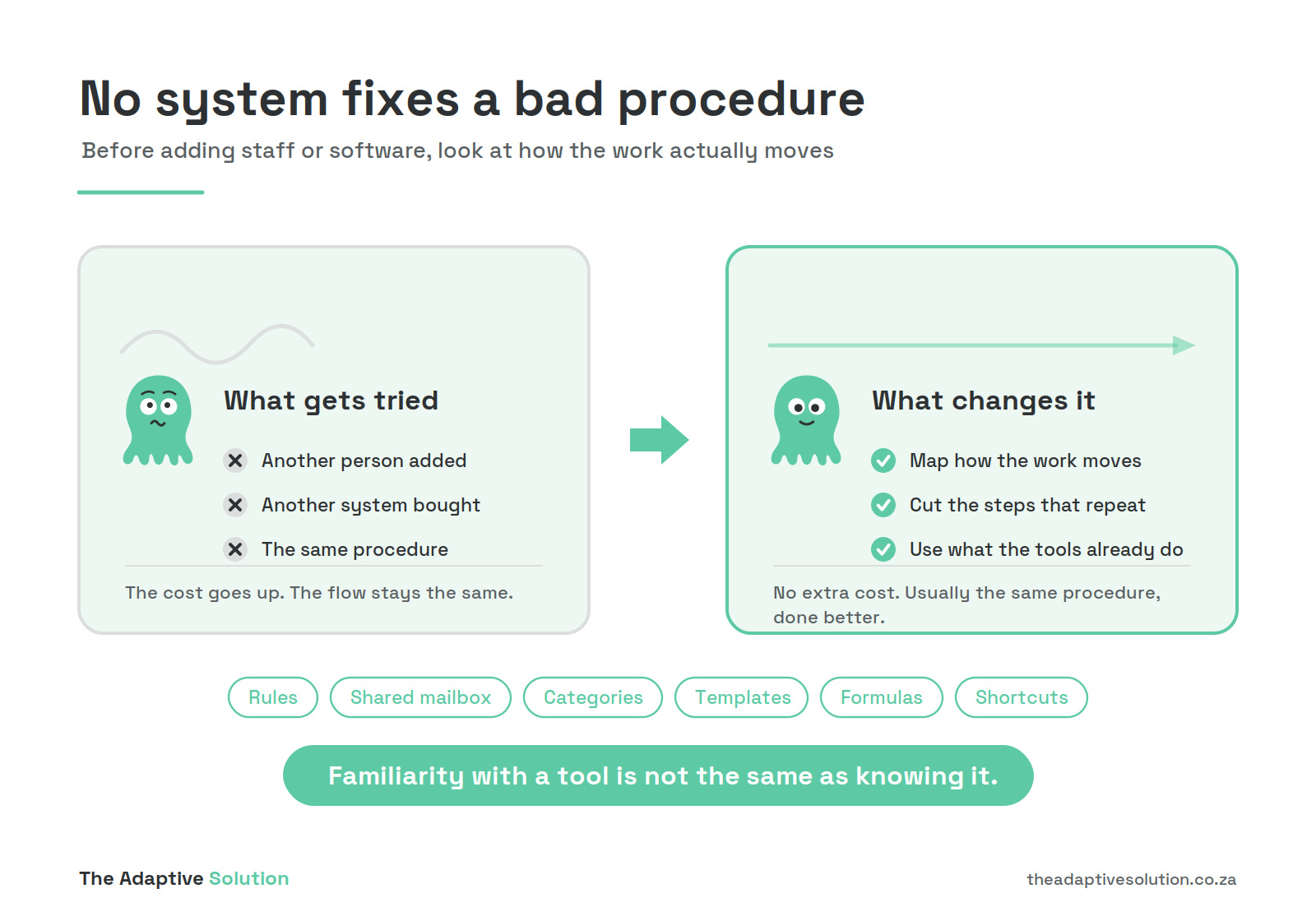
No system and no additional headcount will fix a badly designed procedure. It will only carry the same inefficiency at greater cost.
More of the same
- Another person added
- Another system bought
- The same procedure
The cost goes up. The flow stays the same.
A look at the flow
- Map how the work moves
- Cut the steps that repeat
- Use what the tools already do
No extra cost. Usually the same procedure, done better.
The second cause is habit
Processes stay the way they were set up years ago, long after better ways of doing the work became available. Most of us have used Office for our entire careers, but familiarity is not the same as knowing it. A great deal has been added that we were never shown, and nobody schedules an afternoon to go looking.
Familiarity with a tool is not the same as knowing it.
What follows is a working list of those small things. One at a time, each takes a few minutes to set up and saves the same few minutes every day after that.
The topics
Published as a short guide each day. The first three are below; the rest are added here as they go up.
- 1Folders and rules Give the repeating mail somewhere to go, and let Outlook put it there
- 2Shared mailboxes One inbox and one record, instead of three forwarded copies
- 3Headers and etiquette The subject line your rules, your search and your colleagues depend on
- 4Attachments in one action Fifteen invoices into a folder without opening them one by one
- 5Categories and flags See what is outstanding without opening anything
- 6Searching properly Finding the email when the sender wrote a useless subject line
- 7Keyboard shortcuts The handful worth the ten minutes it takes to learn them
- 8Your own toolbar The commands you use forty times a day, within reach
- 9Templates Stop rebuilding the same document every month
- 10Dates and calculations Month-ends, due dates and ageing, worked out by Excel
- 11Styles in Word Let Word build and update the table of contents
Guide 1
Folders give it order. Rules do the sorting.
You open your mailbox and it is a wall of email. Statements, notifications, OTPs, newsletters, supplier invoices, and somewhere in there the three things that actually need you this morning. So you sift. Every day.
And if you do not get to clearing it out, weeks later when you need one of those emails back, finding it is hard — especially when the sender never used a proper subject line.
Most of what arrives is not urgent and not new. It does not need to be in front of you. It needs to be somewhere you can find it.
Give it somewhere to go
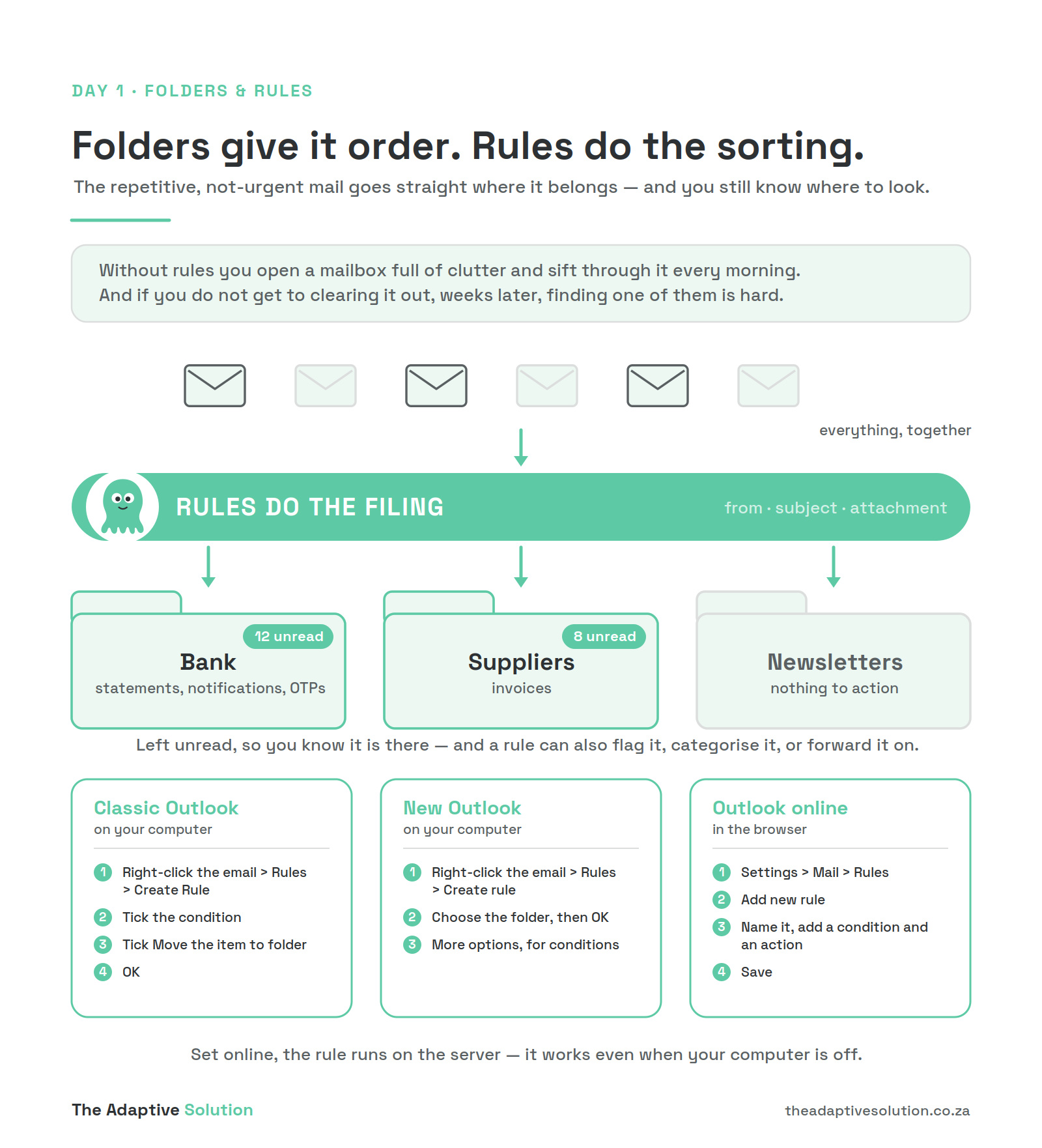
Create a folder for each of those repeating, non-urgent things — bank, suppliers, newsletters — then write a rule that files them on arrival. Leave a folder unread where you still want to see that something came in: the folder carries the count, and your inbox stays clear.
How to set it up
Classic Outlook
on your computer- Right-click the email, then
Rules, thenCreate Rule - Tick the condition
- Tick
Move the item to folder OK
New Outlook
on your computer- Right-click the email, then
Rules, thenCreate rule - Choose the folder, then
OK More options, for conditions
Outlook online
in the browserSettings>Mail>RulesAdd new rule- Name it, add a condition and an action
Save
Set the rule up in the browser and it runs on the server, so it works even when your computer is off. Rules created in classic Outlook that were client-side do not carry over to new Outlook — those have to be rebuilt.
A rule can do more than move it
It can also flag it, categorise it, or forward it on to whoever actually deals with it. One caution on forwarding: most Microsoft 365 environments block automatic forwarding to outside addresses, so the rule looks like it saved and the mail simply never arrives. Forwarding internally to a colleague is usually fine.
And before any of it
- Work through what is already sitting in the inbox, and file it or delete it
- Unsubscribe from the lists and notifications you never open — if it has been unread for a year, it will be unread next year
- Then build the folders you actually need, not twenty of them
Setting up folders and rules across a team, on mailboxes that have years of mail in them, is an afternoon's work that most people never get to. If you would rather it was simply done, that is the kind of thing I set up — along with the procedure around it, so it keeps working after I leave.
Microsoft's own instructions, covering all three versions: Use rules in new and classic Outlook for Windows
Guide 2
The address should outlive the person
Every business has one. accounts@, info@, orders@. It never changes, everyone remembers it, and everything of that kind lands in one place. That is the whole point of it.
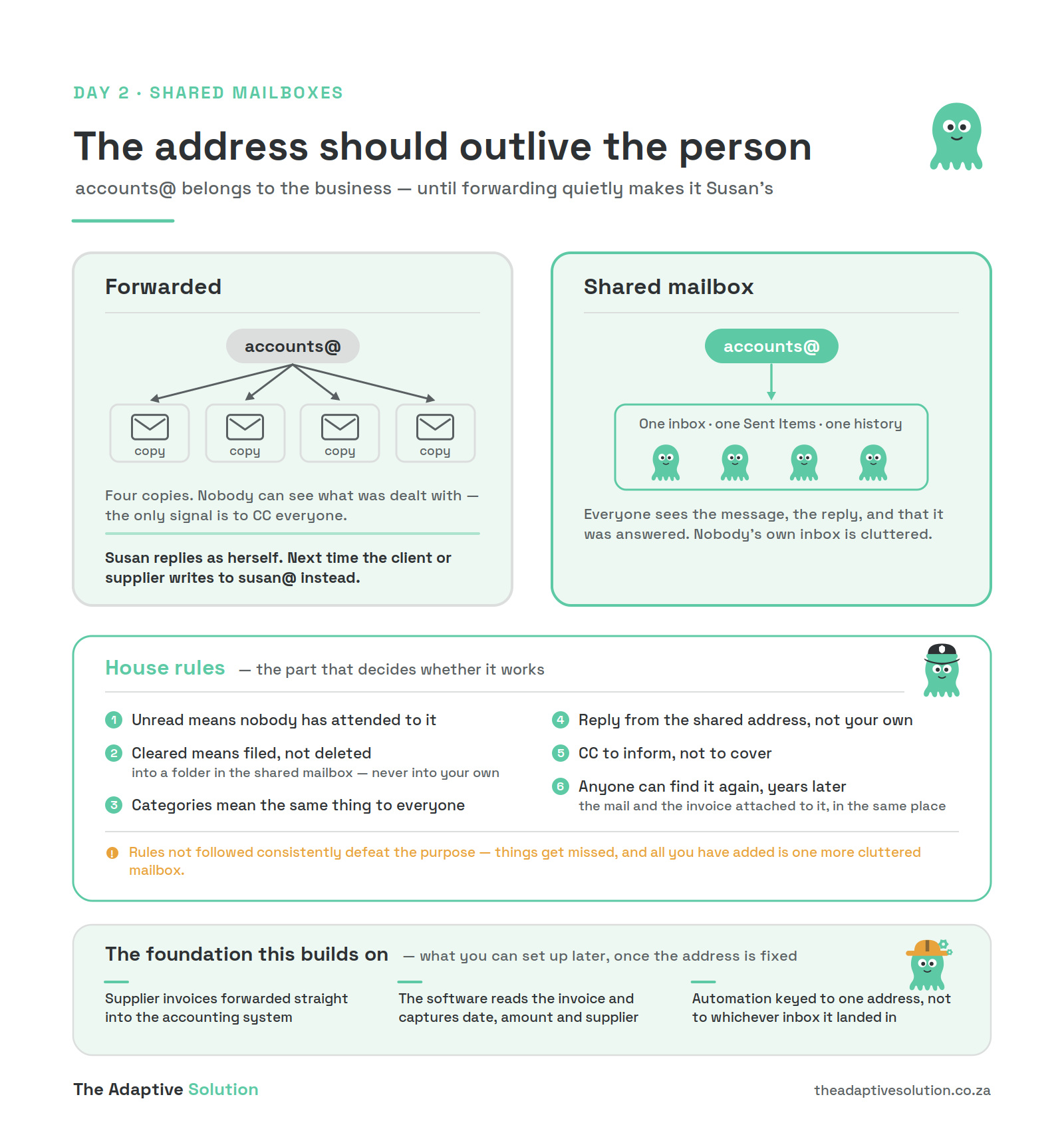
Then it gets forwarded to four people, and the point is lost. Everyone has a copy. Nobody can see what has been dealt with and what has not. The only way to signal that you handled something is to CC the others — so now four inboxes carry every message twice, and still nobody is certain the client was answered.
The failure nobody plans for
The mail is forwarded to Susan. Susan replies — from her own address, because that is where it landed. The client was helped, so next time they write to susan@ instead. Slowly the address everyone agreed on is bypassed, and the work depends on one person. Then Susan goes on leave, and nobody else can see any of it.
The address stopped being the business’s and became hers. Nobody’s fault — the process allowed it.
A shared mailbox closes that. One inbox, one Sent Items, one history. Everyone with access sees the message, sees the reply, and sees that it was answered. Nobody’s personal inbox fills up with copies. And replies go out from accounts@ rather than from Susan, so the client gets a person while the business keeps the address.
One thing most businesses do not know: a shared mailbox needs no licence of its own. Up to 50 GB it costs nothing. The people using it need their own licensed mailbox, which they already have. Most small businesses forward because they assume a second mailbox means a second subscription. It does not.
The house rules
The mailbox is the easy part. What decides whether it works is the handful of rules everyone agrees to use it by. Write them down before you give anyone access.
- Unread means nobody has attended to it. The rule the whole thing rests on.
- Cleared means filed, not deleted — into a folder in the shared mailbox, never into your own.
- Categories mean the same thing to everyone. Agree what each one is for.
- Reply from the shared address, not your own. That is what stops the drift.
- CC to inform, not to cover. If everyone is copied, nobody is responsible.
- Anyone can find it again, years later — the mail and the invoice attached to it, in the same place.
Rules not followed consistently defeat the purpose. Things get missed, and all you have added is one more cluttered mailbox.
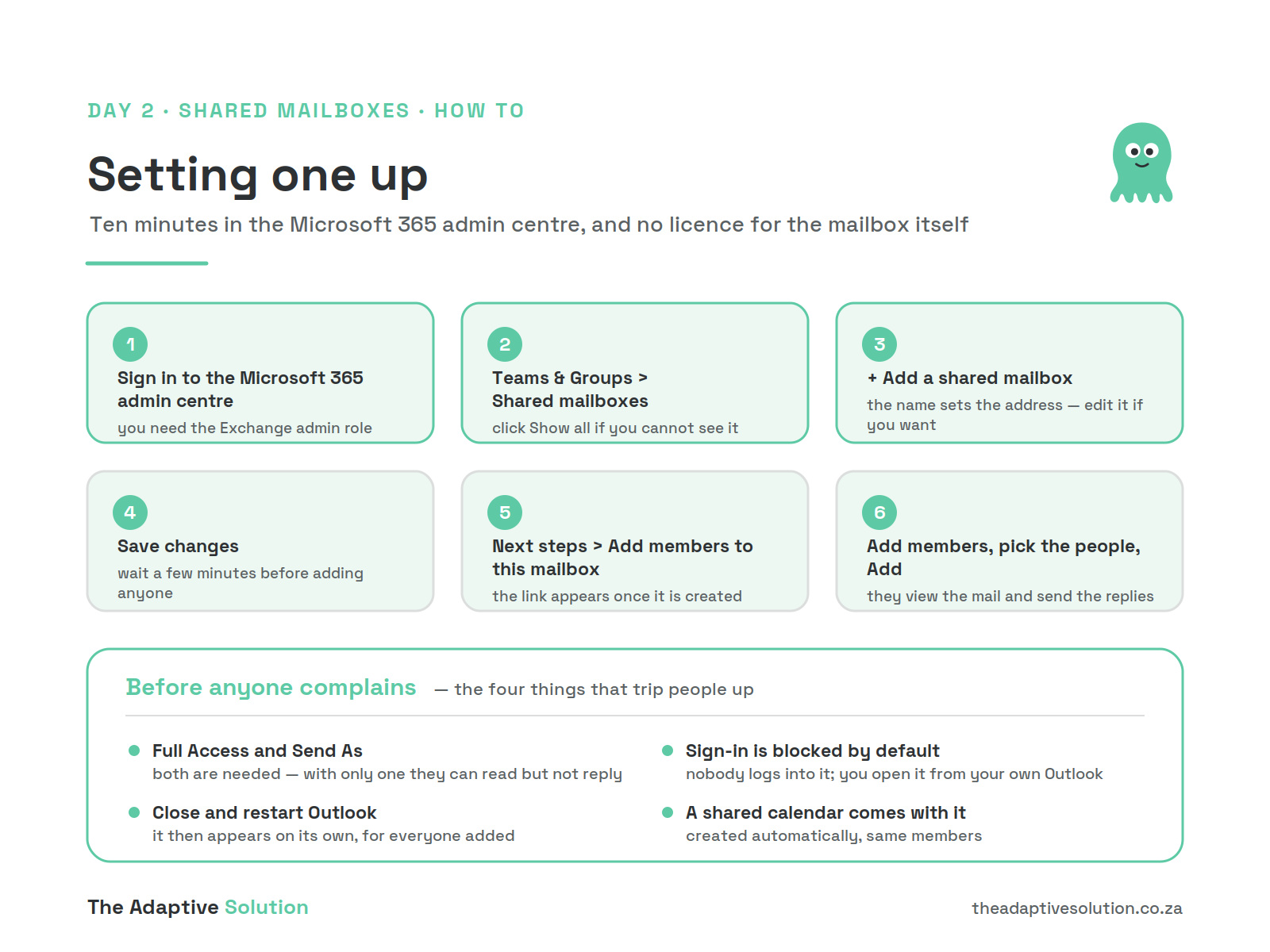
Setting one up
About ten minutes, in the Microsoft 365 admin centre. You need the Exchange admin role — if you are not an admin you will be told you do not have permission.
Create it
admin centre- Sign in to the Microsoft 365 admin centre
Teams & Groups>Shared mailboxes(clickShow allif you cannot see it)+ Add a shared mailbox— the name sets the addressSave changes
Add the people
a few minutes later- Under
Next steps, chooseAdd members to this mailbox Add members, pick the people,Add- They close and restart Outlook
- It then appears on its own
Before anyone complains
the four that catch people- Full Access and Send As — with only one they can read but not reply
- Sign-in is blocked by default; nobody logs into it
- Outlook must be restarted before it shows
- A shared calendar comes with it, same members
What this builds the foundation for
A fixed address is what makes later automation possible. You cannot point anything at a process that depends on whose inbox the mail happened to land in.
- Supplier invoices forwarded straight into the accounting system
- The software reading the invoice and capturing the date, amount and supplier
- Automation keyed to one address rather than to a person
A working example: QuickBooks Online gives each company a forwarding address ending in @qbodocs.com. Forward a supplier invoice to it and QuickBooks pulls out the date, amount, supplier and the last four digits of the card, then hands you a transaction to review and categorise. PDF or image, one receipt per image, and you nominate which users may send to it. None of that works without one address the invoices arrive at.
Setting up the mailbox is the quick part. Agreeing the rules, moving years of mail out of personal inboxes, and getting people to actually work the new way is where it stalls. That is the kind of thing I set up — along with the procedure around it, so it keeps working after I leave.
Microsoft’s own pages: Create a shared mailbox · About shared mailboxes
Guide 3
Does your header and content serve the whole organisation?
Most businesses have no agreed etiquette on email. Everyone writes the way they feel on the day, and the result is a mailbox nobody else can work with.
Start with the subject line, because everything else depends on it. A header might just be a header — but what was it ever for?
It has three jobs. It tells the reader what is inside before they open it. It lets anyone find the message again in eight months. And — the one everyone forgets — it is what your rules and your filing key off.
A rule can only work on something predictable. If every invoice goes out with a subject line somebody invented that morning, there is nothing to key on.
So run five questions over anything before you send it:
- What is it about?
- Who does it concern?
- Who must action it?
- Can it be searched?
- What can the rules do with it?
“Invoice query.” “Please see attached.” “Follow up.” “Hi.” None of those pass.
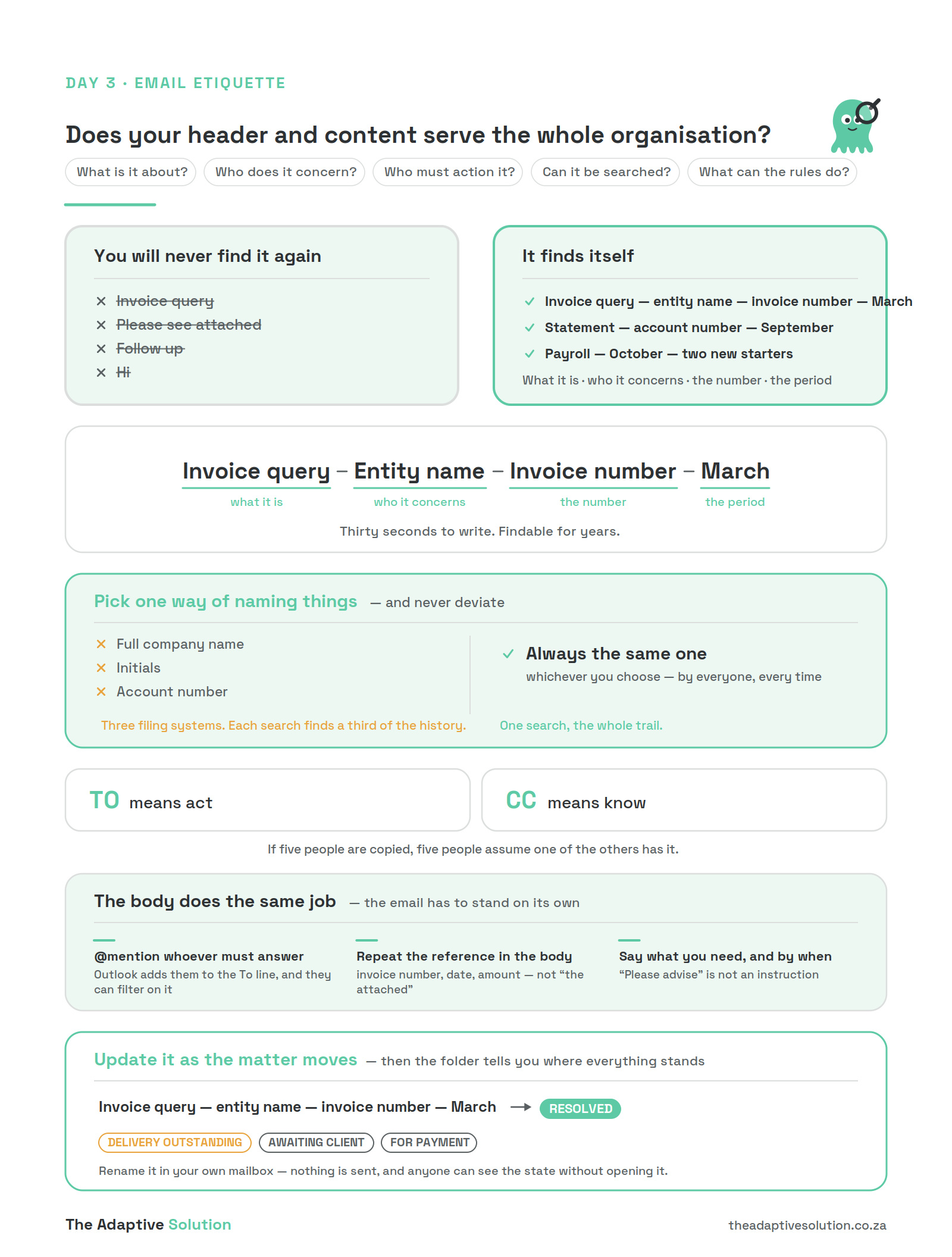
What a subject line needs
- What it is — invoice, statement, query, payroll
- Who or what it concerns — the client, supplier or entity
- The number — invoice, order or reference
- The period — the month it belongs to
Thirty seconds to write, and it finds itself for the next five years.
Pick one way of naming things, and never deviate
Either the full company name, or the abbreviation, or the account number. One of them, used by everyone, every time. Not whichever comes to mind.
If a client is sometimes the full name, sometimes initials and sometimes an account number, you have three filing systems and none of them work. Searching for one finds a third of the history, and you will never know what you missed.
The same goes for the numbers. Always the invoice number. Always the order number. Always the month. Those are what somebody searches on when a matter resurfaces two years later and the whole trail is needed.
The body does the same job
- @mention whoever must answer. Type @ and their name in the body; Outlook adds them to the To line and highlights it. They can then filter their mailbox by “@ Mentions me” to see only mail that actually needs them.
- Repeat the reference in the body — invoice number, date, amount. Not “the attached”. The email has to stand on its own when it is read in isolation, years later.
- Say what you need, and by when. “Please advise” is not an instruction.
To means act. CC means know. Most people CC to cover themselves, and the effect is that nobody is sure who is actually doing it. If five people are copied, five people assume one of the others has it.
Update it as the matter moves
Add the status to the end of the subject as things change — RESOLVED, DELIVERY OUTSTANDING, AWAITING CLIENT, FOR PAYMENT. Then the folder tells you where everything stands without anyone opening anything.
You can rename the subject of a message sitting in your own mailbox without sending anything. Nobody else sees the change. That is how you fix the supplier who writes “Invoice” on everything, without having to ask them to change.
Renaming the subject on a reply is different. In Gmail the recipient sees it as a new conversation, separate from the original thread. Outlook is more forgiving, but behaviour varies. If the topic has genuinely moved on, start a fresh email with a proper subject rather than renaming a reply — you wanted a new thread anyway.
Agree it internally
Pick the handful of things your business sends every week — invoices, statements, payroll, orders, queries — and agree how each one is written, including which identifier you use. Written down, that is half a page.
Then the rules from Guide 1 work, the shared mailbox from Guide 2 works, and anyone can pull the history on any matter in seconds. None of this is politeness. It is filing, done at the moment of writing rather than at the moment you are desperate.
Writing the convention is the easy part. Getting a team to use it consistently, and rebuilding the rules and folders around it, is where this stalls. That is the kind of thing I set up — along with the procedure around it, so it keeps working after I leave.
Microsoft’s own page: Use @mentions to get someone’s attention in Outlook
Who writes this
Bernice Kruger, Chartered Business Accountant in Commerce (CIBA). Fifteen years in accounting, most of it running finance departments across a group of companies — month-ends, management reporting, systems and board packs — and since 2025 doing the same work independently for businesses across several industries.
The procedures on this page come out of that work rather than out of a manual. More about the practice.